
How to Password Protect WhatsApp Web in Chrome (2026 Step-by-Step Guide)
A comprehensive, technical guide on locking and password-protecting your WhatsApp Web tab in Chrome, Edge, and Brave. Learn why built-in screen locks fail, how navigation-level encryption works, and how to enable Touch ID and Windows Hello unlock.
TL;DR
WhatsApp Web has an optional built-in screen lock, but it only activates after a fixed inactivity timer (minimum 1 minute), leaves the green icon and chat counts visible in the tab bar, and does not trigger on tab switching. For true workplace privacy, use Locksy: press Alt+Shift+9 or add a domain rule for web.whatsapp.com to unmount the page DOM instantly behind PBKDF2 encryption (600,000 SHA-256 iterations) with Touch ID or Windows Hello unlock — completely offline.
WhatsApp WebChromeBrowser PrivacyTab LockingTutorialPassword ProtectionBiometricsWorkplace Privacy
Share:
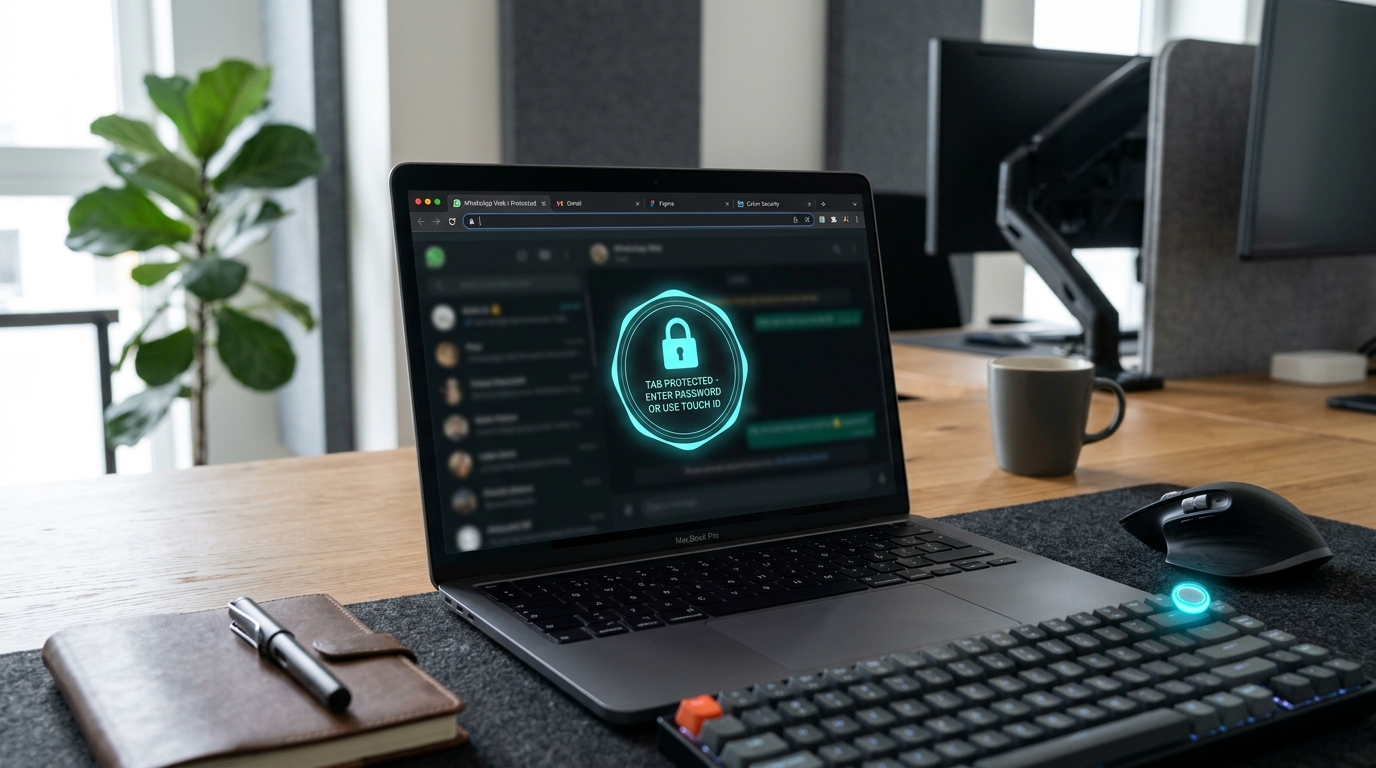
Key Takeaways
- WhatsApp Web is the single largest privacy liability on work laptops because active sessions expose personal chats, photos, and voice notes without requiring phone re-authentication.
- WhatsApp Web native Screen Lock requires a minimum 1-minute idle delay, does not disguise tab titles, lacks biometric integration, and can be bypassed by clearing local storage.
- CSS overlay lockers are insecure: any user with basic Chrome DevTools knowledge can inspect the element and delete the overlay in under three seconds.
- Navigation-based tab locking unloads the page DOM entirely, redirecting the tab to an isolated extension sandbox where no chat data exists in active memory.
- Locksy derives encryption keys locally using PBKDF2-HMAC-SHA256 with 600,000 iterations and a 16-byte random salt, running 100% offline with zero cloud telemetry.
- Biometric unlock via WebAuthn/FIDO2 allows unlocking locked WhatsApp tabs in under 200 milliseconds using Apple Touch ID or Windows Hello.
- Domain wildcard rules (e.g., *web.whatsapp.com*) ensure WhatsApp opens in a locked state every time the browser launches or the page reloads.
- Stealth Mode disguises your locked WhatsApp tab as a realistic "404 Not Found" or "502 Bad Gateway" page to eliminate coworker suspicion.
The Workplace Privacy Nightmare: Open WhatsApp on Your Laptop
It takes less than five seconds for a coworker, manager, or passerby to read your most intimate WhatsApp conversations.
Consider how hybrid work and modern office layouts actually function:
- Open-plan desks and hot-desking setups where people constantly walk behind your monitor.
- Quick coffee or water breaks where leaving your laptop unlocked feels harmless because you are only stepping away for 45 seconds.
- Impromptu desk huddles where a colleague leans over your shoulder to review a spreadsheet, pull request, or design file.
- Screen sharing during Zoom, Google Meet, or Microsoft Teams calls where a notification banner or tab click accidentally exposes your chat list.
In those few unguarded seconds, an open WhatsApp Web tab exposes your private personal conversations, confidential financial discussions, family medical details, or job-hunting inquiries.
Most people know that locking the entire computer using Win+L or Cmd+Control+Q is the safest option. But in a fast-paced work environment, locking your entire operating system every time you stand up for 30 seconds is disruptive: your external displays go to sleep, ongoing file downloads pause, video conference audio disconnects, and music stops.
What you need is surgical tab-level protection: keeping your IDE, documentation, and work communication tools open while locking WhatsApp Web behind unbreakable encryption and instantaneous biometric authentication.
In this deep guide, we examine why WhatsApp's native screen lock is insufficient for real-world office threats, how extension architectures differ in security, and how to set up an airtight tab locking workflow.
Why WhatsApp Web's Built-In Screen Lock Leaves You Exposed
In late 2023, Meta introduced an optional "Screen Lock" within WhatsApp Web settings (accessible via Settings > Privacy > Screen Lock). While this was a welcome addition, relying on it in an active workplace reveals serious architectural limitations:
| Security Vector | WhatsApp Web Native Screen Lock | Dedicated Navigation Locker (Locksy) |
|---|---|---|
| Lock Activation | Fixed idle timer (1, 15, or 60 min) | Instant hotkey (Alt+Shift+9) or right-click |
| Biometric Support | ❌ None (Text password only) | ✅ Apple Touch ID & Windows Hello (WebAuthn) |
| Tab Title Masking | ❌ Shows "WhatsApp" & unread badges | ✅ Masks tab title with custom text or padlock |
| Favicon Cloaking | ❌ Shows green WhatsApp logo | ✅ Replaces favicon with neutral lock icon |
| Stealth / Disguise Mode | ❌ Obvious password prompt | ✅ Disguises tab as 404 Error or 502 Gateway |
| Bypass Resistance | ⚠️ In-page script (cleared via storage) | ✅ Complete navigation & DOM unmounting |
| Domain Auto-Enforcement | ⚠️ Only after session restores | ✅ Intercepts URL before scripts render |
| Failed Attempt Auditing | ❌ None | ✅ Intruder logging with webcam snapshots |

1. The Minimum 60-Second Exposure Window
WhatsApp's built-in lock relies strictly on a timer. The shortest available delay is 1 minute.
If you step away from your workstation to speak with a coworker three desks away, your chats remain completely readable in plain text for the entire first 60 seconds. In physical security and corporate espionage, 60 seconds is an eternity — anyone walking past can read your latest messages or snap a photo with their smartphone.
2. Tab Bar "Visual Snitching"
Even when WhatsApp's native screen lock triggers, your browser's tab strip continues to display:
- The bright green WhatsApp favicon.
- The tab title:
WhatsApp (3)showing your unread message count.
To anyone looking at your screen during a meeting or walking past your desk, it is immediately obvious that you are running personal messaging apps during work hours.
3. Friction and Weak Passwords
Because WhatsApp's native lock requires manually typing a passphrase every single time you return to the tab, users inevitably choose short, weak passwords (like 123456) to reduce daily friction. If you work in an office where colleagues might guess a simple PIN, a weak alphanumeric lock offers little practical security.
The Technology Divide: Navigation-Level Unmounting vs CSS Overlays
If you search the Chrome Web Store for "tab lock" extensions, you will encounter two completely different engineering approaches. Understanding the difference is crucial to protecting your data.
The Insecure Approach: CSS Overlay Lockers
Legacy extensions such as Tab Lock or LockPW operate by injecting a stylesheet and a JavaScript modal over the existing page.
When you lock the tab, the extension renders an HTML <div> that covers the screen with a password form. However, the target webpage remains 100% active underneath the overlay:
- All HTML elements, chat bubbles, and images are still loaded in browser memory.
- If someone has physical access to your keyboard, they can simply right-click anywhere, select Inspect (or press
F12), locate the overlay<div>in Chrome DevTools, and press Delete. - The overlay vanishes instantly, exposing your entire WhatsApp inbox without asking for a password.
Furthermore, many of these older tools have not received updates since 2021 and do not implement proper cryptographic key derivation.
The Secure Approach: Navigation-Level Unmounting
Modern tab protection tools like Locksy do not place a visual sticker over an active website. Instead, they use the Chromium tabs and webNavigation APIs:
- When you trigger a lock, Locksy captures the current tab URL and state into an isolated local storage vault encrypted via PBKDF2-HMAC-SHA256.
- The extension physically navigates the tab away from
web.whatsapp.comto an internal extension sandbox page (chrome-extension://.../lock.html). - The WhatsApp Web Document Object Model (DOM) is completely destroyed and unmounted from memory.
- There are no chat messages, contact names, or media elements present in the viewport for DevTools to inspect.
- Only when you enter the correct master password or authenticate with Touch ID / Windows Hello does Locksy derive the decryption key, re-verify authenticity in constant time, and safely navigate you back to your WhatsApp session.
For a deeper dive into how this architecture prevents browser tampering, see our technical breakdown of how Locksy uses client-side encryption.
Step-by-Step Setup: Locking WhatsApp Web in 90 Seconds
Here is the exact setup to achieve military-grade, biometric-protected privacy for WhatsApp Web on Google Chrome, Microsoft Edge, Brave, or Arc.
Step 1: Install Locksy Free
- Open your Chromium browser.
- Visit Locksy on the Chrome Web Store (or click Install Locksy to automatically detect your browser store).
- Click Add to Chrome and confirm the installation.
- Click the puzzle icon in your Chrome toolbar and Pin Locksy so its status badge is always visible.
Locksy operates 100% offline. It requires no email signup, creates no cloud account, and makes zero telemetry requests to external servers.
Step 2: Establish Your Master Encryption Key
- Click the Locksy icon in your toolbar to open the initial setup screen.
- Enter a strong Master Password. Locksy will use this phrase to compute a cryptographic encryption key using PBKDF2 with 600,000 SHA-256 iterations combined with a cryptographically secure 16-byte random salt.
- Recommendation: If you want to check whether your chosen passphrase meets corporate entropy standards, test it on our free password strength checker.
Step 3: Register Touch ID or Windows Hello Biometrics
Typing a 16-character master password 20 times a day creates friction. Locksy solves this using the W3C WebAuthn / FIDO2 standard:
- In the Locksy popup, click the Settings Gear icon.
- Toggle Enable Biometric Unlock.
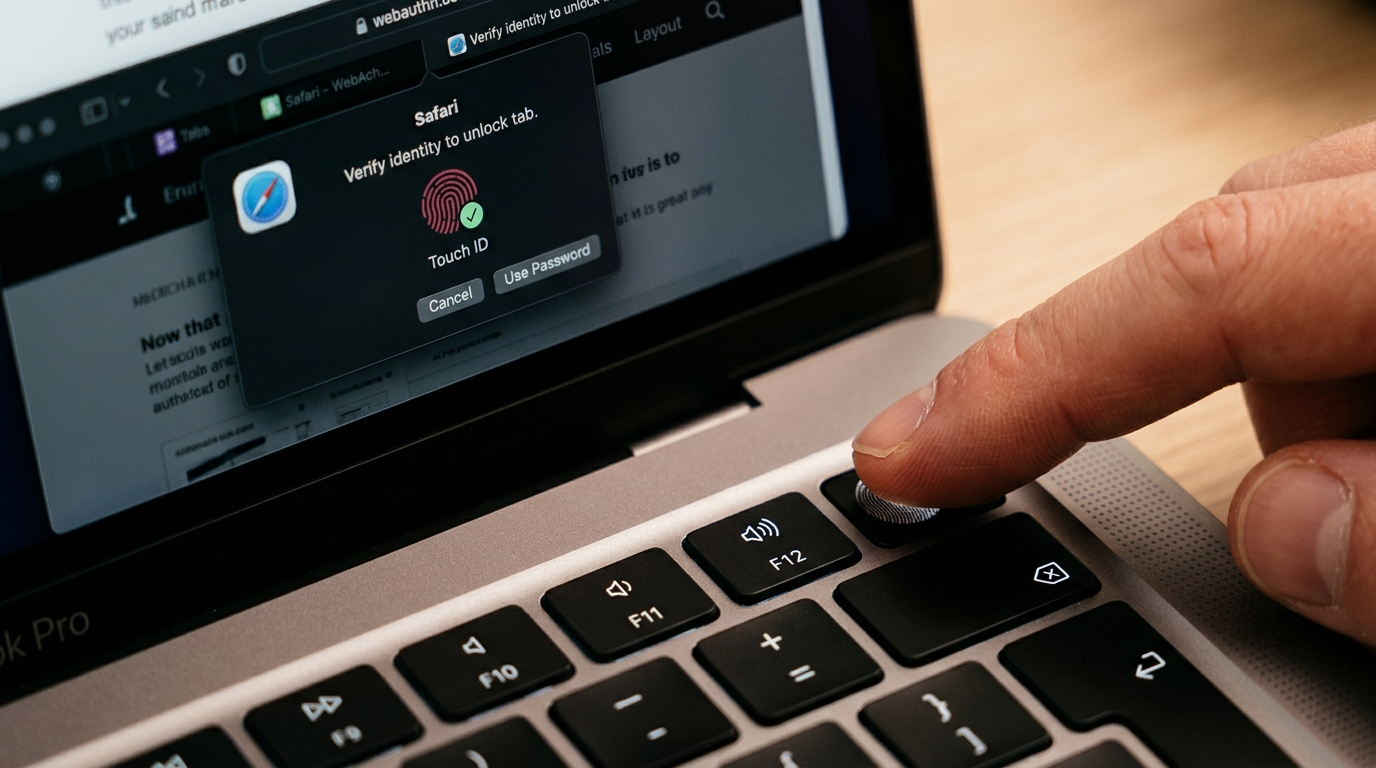
- Your operating system will prompt you with a native hardware verification:
- On macOS: "Touch ID to verify with Locksy".
- On Windows: "Windows Hello Fingerprint / PIN / Face recognition".
- Touch your biometric sensor. Your hardware-backed public key is now registered locally.
You can now unlock your locked tabs in 0.1 seconds with a single touch of your finger.
The Daily Workflow: 3 Ways to Lock WhatsApp Web
Once configured, Locksy gives you three seamless methods to guard WhatsApp Web based on your work scenario:
1. The Emergency Panic Shortcut (Alt+Shift+9)
When you are chatting on WhatsApp Web and someone unexpectedly walks up to your desk:
- Press
Alt+Shift+9on Windows/Linux orOption+Shift+9on macOS. - In under 50 milliseconds, the WhatsApp tab is replaced by the Locksy lock screen.
- The tab title changes to
🔒 Protected Taband the WhatsApp icon disappears.
2. Right-Click Context Menu
If your hands are on your mouse:
- Right-click anywhere on the WhatsApp Web page.
- Select Lock This Tab from the context menu.
3. Permanent Domain Auto-Lock (Set and Forget)
If you never want WhatsApp Web to load in an unlocked state:
- Open Locksy Settings and navigate to Domain Rules.
- Add
web.whatsapp.comto your protected domain list. - Now, whenever Chrome restarts, or whenever you open a link pointing to WhatsApp Web, Locksy intercepts the request before any chat data can render. You must authenticate with Touch ID or your master password before the page is even requested from Meta's servers.
Advanced Workplace Privacy Features
Beyond basic password locking, several advanced features in Locksy ensure your personal browsing remains completely invisible to colleagues.
Stealth Mode: Disguise Your Locked Tab
In an office setting, having a locked tab that says "Enter Master Password to Unlock" can raise awkward questions from colleagues: "What are you hiding on your work laptop?"
Locksy includes a built-in Stealth Disguise Mode:
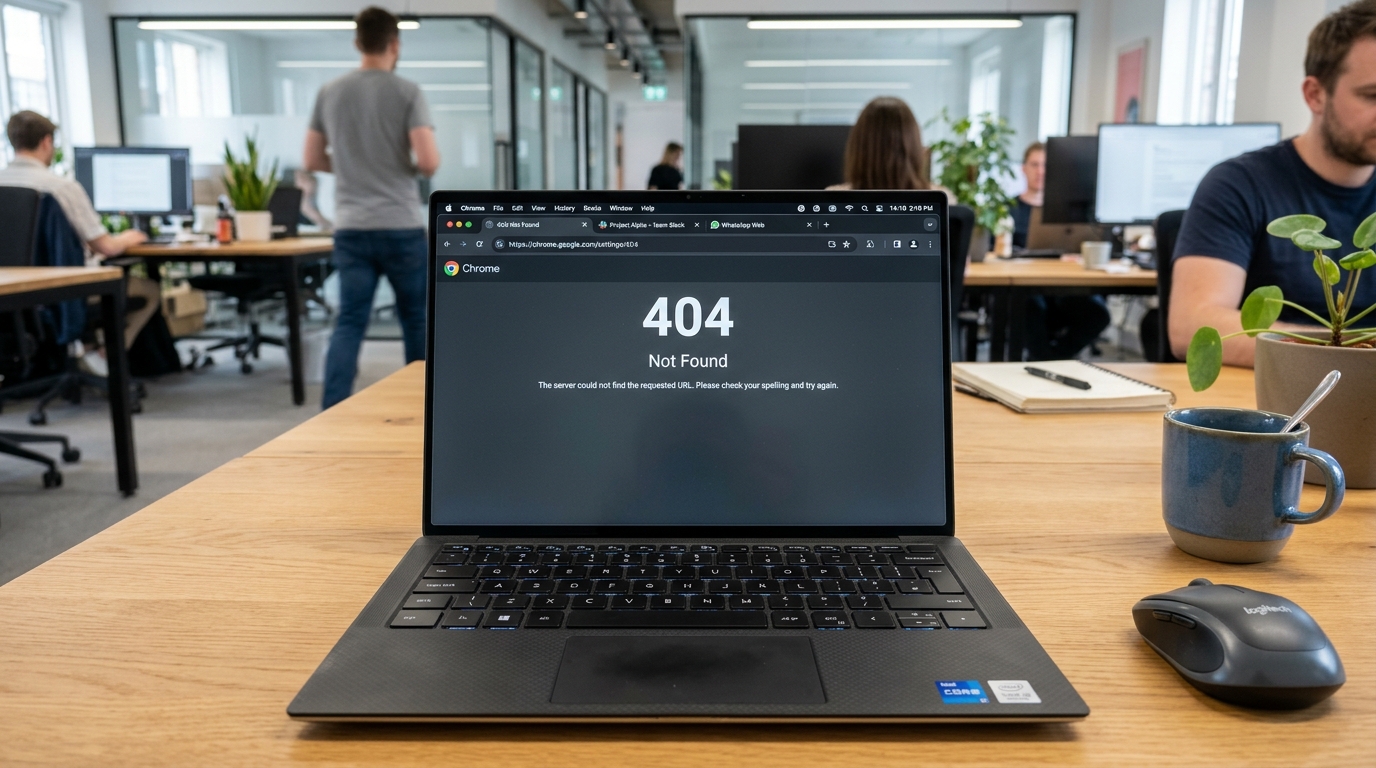
- In Locksy Settings, change your Lock Screen Style to "404 Not Found" or "502 Bad Gateway".
- When locked, WhatsApp Web displays a realistic, technical server error page.
- To anyone glancing at your monitor, you simply appear to be experiencing a network glitch or reviewing an unreachable API endpoint.
- Double-clicking the error code or pressing your master unlock hotkey brings up the subtle authentication prompt.
Inactivity Auto-Lock with Smart Media Detection
If you frequently step away from your desk without remembering to hit a shortcut:
- Set Locksy's Auto-Lock Timer to 2 minutes.
- Locksy monitors user activity signals (mouse cursor motion, keyboard keystrokes, and scroll events).
- Crucially, Locksy includes smart media awareness: if you are playing an audio voice note or watching a shared video file in another tab, Locksy will not abruptly lock your browser mid-playback. It only locks when your system is truly unattended.
Intruder Capture & Local Audit Log
If someone sits at your desk while you are away and attempts to guess your master password:
- Locksy enforces rate limiting to prevent automated brute-force attacks.
- After three consecutive failed attempts, Locksy can optionally trigger your laptop's front-facing webcam to capture an intruder photograph.
- The photo and timestamp are stored strictly in your local browser sandbox. No photo is ever uploaded to the cloud or transmitted over the internet.
Technical Comparison: Locksy vs Alternative Approaches
| Feature | Locksy Pro | Built-in Browser Profiles | Closing Laptop Lid (Sleep) | Third-Party Web Wrappers |
|---|---|---|---|---|
| Setup Time | 90 seconds | 5–10 minutes | 0 seconds | 5 minutes |
| Workflow Interruption | Zero (only locks target tab) | High (switches entire window) | High (sleeps entire machine) | High (separate desktop app) |
| Biometric Support | Touch ID / Windows Hello | OS login only | OS login only | Rarely supported |
| Key Derivation | PBKDF2 600k SHA-256 | None on tab level | OS-level disk encryption | None |
| Stealth / Disguise | ✅ 404 / 502 mock error | ❌ None | ❌ None | ❌ Shows desktop app icon |
| Memory Footprint | Lightweight (<15 MB) | Heavy (duplicates engine) | N/A | Heavy (Electron app ~300 MB) |
| Price | Free / $4.99 Lifetime Pro | Free | Free | Varies |
For a broader evaluation of how tab lockers compare to operating system lock screens and password managers, read our comprehensive guide on the 7 best tab locking extensions in 2026.
Workplace Privacy Checklist for WhatsApp Web Users
To ensure complete privacy across all your devices, follow this 5-point security routine:
- Disable Web Notification Previews: In WhatsApp Web, go to Settings > Notifications and uncheck Show Previews. This prevents incoming message text from popping up in the corner of your screen during presentations. For more presentation tips, see our guide on how to hide tabs during screen sharing.
- Set a Domain Rule in Locksy: Automatically lock
web.whatsapp.comso you never rely on manual memory. - Audit Active Linked Devices Regularly: On your mobile phone, open WhatsApp > Settings > Linked Devices. Review the list of active sessions weekly and log out of any stale browsers or old office PCs.
- Enable Stealth Mode: Disguise your locked tabs as a 404 error page to prevent curious coworkers from asking why your tabs are locked.
- Turn On Hardware Biometrics: Enable Touch ID or Windows Hello so unlocking takes 0.1 seconds, eliminating the urge to disable your security when deadlines get tight.
Conclusion: Take Control of Your Screen Privacy
Your open browser tabs contain your most personal conversations, financial accounts, and work data. Closing your laptop lid every time you leave your chair is cumbersome, and relying on WhatsApp's delayed built-in timer leaves you vulnerable to shoulder-surfers.
By adding navigation-level PBKDF2 encryption and instantaneous Touch ID or Windows Hello biometric unlock, you can keep WhatsApp Web running all day with complete confidence that your private chats remain strictly your own.
Install Locksy Free on Chrome, Edge & Brave or read our foundational tutorial on how to password protect browser tabs.
Frequently Asked Questions
Does WhatsApp Web have a built-in password lock feature?
How do I instantly lock WhatsApp Web when stepping away from my desk?
Can I unlock WhatsApp Web using my MacBook Touch ID or Windows Hello fingerprint?
Why are CSS overlay extension lockers dangerous for WhatsApp Web?
Can I set WhatsApp Web to always open in a locked state?
Does Locksy send my WhatsApp messages or passwords to any server?
VS
Vansh SethiAuthor
Developer & Founder of Locksy
Vansh is the developer and founder of Locksy — a privacy-first browser tab security extension trusted by 5,000+ users across Chrome, Edge, Firefox, and Brave. He writes about browser security, privacy, and developer tools.
Related Articles

Tutorial
How to Lock Specific Tabs in Chrome Without Extensions. Learn about lock chrome tabs and chrome tab security with practical tips and expert advice.
Comparison
A comprehensive, hands-on review of the 5 best Chrome extensions to lock, hide, and disguise browser tabs at work. We test boss keys, biometric fingerprint unlock, DOM security, and stealth modes for open offices.

Security
Password managers store your credentials, but what protects your active logged-in browser tabs? Learn why tab locking and password managers serve complementary roles.