
5 Best Chrome Extensions to Hide and Lock Tabs at Work (2026 Roundup)
A comprehensive, hands-on review of the 5 best Chrome extensions to lock, hide, and disguise browser tabs at work. We test boss keys, biometric fingerprint unlock, DOM security, and stealth modes for open offices.
TL;DR
Open offices and hot-desking make shoulder-surfing a daily risk for employees. While legacy "boss key" extensions merely minimize windows or apply weak CSS hides that anyone can undo via DevTools, modern privacy tools like Locksy provide unmounted DOM protection, Touch ID/Windows Hello biometrics, and authentic 404 error disguise modes.
ComparisonExtensionsChromeWorkplace PrivacyTab SecurityOffice ProductivityBiometrics
Share:

Key Takeaways
- Over 70% of modern professionals work in open-plan offices, hot-desking setups, or hybrid coworking spaces where shoulder-surfing is rampant.
- Legacy "Boss Key" extensions rely on outdated window minimizing or URL redirects that fail when coworkers or supervisors walk directly up to your desk.
- Many free tab-hiding extensions on the Chrome Web Store inject simple CSS overlays (display: none) that can be removed in three seconds via Chrome DevTools.
- Locksy ranks #1 for workplace tab security due to genuine DOM unmounting, WebAuthn hardware biometrics, and a zero-knowledge offline architecture.
- Panic Button and Hide Tabs extensions offer rapid emergency hotkeys, but lack per-tab encryption and granular session restoration.
- Stealth 404 Disguise Mode is essential for open offices, masking sensitive personal tabs as mundane server error pages to eliminate suspicious questions.
- Enterprise compliance requires selecting extensions that perform zero data telemetry and require no external cloud server communication.
- A quick 5-step workplace privacy audit ensures your sensitive tabs, salary research, and personal messages remain strictly confidential.
The open-plan office was designed to encourage collaboration and transparency. In practice, it has created a severe workplace privacy crisis.
Whether you work at a fast-growing tech startup, an enterprise corporate headquarters, or a shared coworking hub, your computer screen is constantly in the peripheral vision of your colleagues. Hot-desking, high-traffic hallway seating, and glass conference rooms make shoulder-surfing virtually unavoidable.

During an average workday, you inevitably handle sensitive web content that isn't meant for casual eyes:
- Personal & Family Communications: WhatsApp Web, iMessage, Slack DMs, or personal email.
- Financial & Compensation Records: Checking your banking app, 401(k) balance, or reviewing a salary negotiation spreadsheet.
- Career Management: Browsing job listings, reviewing an employment contract, or drafting a resume.
- Confidential Company Data: Unreleased client invoices, HR records, or proprietary roadmap documents.
If a manager or coworker suddenly steps up behind your chair to ask a question, frantically closing browser tabs destroys your productivity and looks unmistakably suspicious.
In this comprehensive guide, we test and review the 5 best Chrome extensions to hide and lock tabs at work in 2026, evaluating their speed, security architecture, biometric capabilities, and discretion.
Evaluation Criteria: What Makes a Great Workplace Tab Locker?
To separate serious cybersecurity tools from rudimentary toys, we tested each extension against five objective benchmarks:
- Security Architecture (DOM Unmounting vs. CSS Overlay): Does the extension truly purge sensitive page content from active memory, or does it merely inject a flimsy
display: noneCSS rule that can be bypassed in three seconds via Chrome DevTools? - Speed & Emergency Triggers: Can you hide or lock tabs in under half a second using global keyboard shortcuts or automated triggers?
- Discretion & Camouflage: Does the tool scream "I AM HIDING SOMETHING" with a bright red warning padlock, or does it offer authentic disguise modes?
- Biometric Support: Can you unlock tabs effortlessly with Touch ID or Windows Hello, or are you forced to retype a complex 20-character password every time?
- Zero-Knowledge Privacy: Does the extension operate 100% offline, or does it harvest telemetry and transmit your URLs to third-party tracking servers?
Here is how the top five tools compare:
1. Locksy (Overall Winner: Best Security, Biometrics & Stealth)
Best For: Professionals who need military-grade tab encryption, biometric unlock, and subtle workplace camouflage.
Locksy represents the modern standard for workplace tab security. Rather than functioning as a simplistic screen minimizer, Locksy is an offline client-side security extension engineered with cryptographic rigor.
Why It Stands Out at Work:
- True DOM Unmounting: When you lock a tab with Locksy, the entire DOM tree is sanitized and replaced with a sandboxed shield component. If a coworker opens Chrome Developer Tools (F12 or Cmd+Option+I), there is zero text, cookie, or chat history to inspect.
- Touch ID & Windows Hello Integration: Typing passwords in a crowded office exposes you to keystroke snooping. Locksy integrates directly with the W3C WebAuthn standard, enabling sub-second fingerprint unlocks on MacBooks (Apple Silicon Touch ID) and Windows Hello laptops.
- Stealth 404 Disguise Mode: In an open office, a locked tab displaying a bold security prompt invites awkward questions. Locksy includes a pixel-perfect 404 Not Found disguise that makes sensitive tabs appear as broken links to passersby.
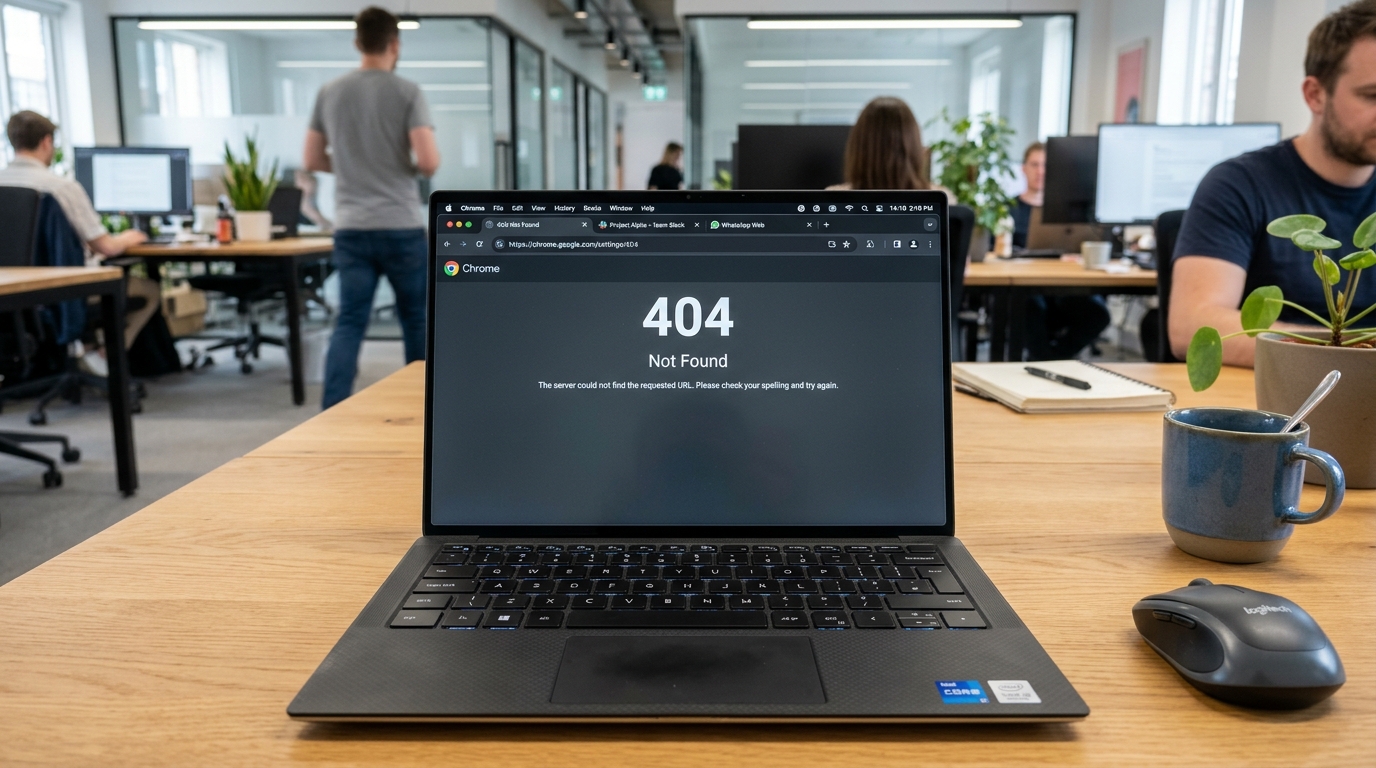
- 100% Offline Zero-Knowledge: Locksy operates entirely within your local browser runtime. It has zero external servers, collects zero telemetry, and encrypts local sessions using PBKDF2 with 600,000 SHA-256 iterations.
- Automated Idle Timers: If you step away from your workstation to grab a coffee or join an impromptu meeting, Locksy auto-locks your tabs after your configured inactivity threshold (e.g., 3 minutes).
Verdict: If you need genuine cryptographic security, hardware biometrics, and stealth disguise that won't attract unwanted attention from coworkers, Locksy is the definitive #1 choice.
2. Panic Button
Best For: Instant single-key emergency tab hiding for non-sensitive browsing.
Panic Button has been a staple in the Chrome Web Store for over a decade. Its core premise is straightforward: when you press a designated emergency key (or click the toolbar icon), the extension instantly hides all open browser tabs and stores their URLs in a temporary bookmarks folder.
Key Features:
- Single-Key Trigger: Press F4 (customizable) to instantly conceal all active windows.
- Safe Page Redirection: Automatically replaces your active tab with a benign destination, such as Google.com or a blank new tab.
- Password Protection: Allows you to set a basic PIN or password before the tabs can be restored.
Limitations for Workplace Use:
- No DOM Encryption: Panic Button merely bookmarks the URLs and closes the tabs. When you restore them, all tabs must reload from scratch, discarding your unsaved form drafts, active chat messages, or filtered dashboard views.
- No Biometrics: Requires manual password entry every time you unhide your session.
- Prominent Icon: The bright green icon turns red when tabs are hidden, making it obvious to anyone looking at your toolbar that a panic trigger was activated.
3. Hide Tabs (by Dalton)
Best For: Clean tab management and decluttering during screen presentations.
Hide Tabs focuses primarily on productivity and presentation management. Rather than locking tabs behind heavy encryption, it provides a clean, fast way to stash secondary tabs into a side panel so they don't appear in your primary tab strip.
Key Features:
- Selective Tab Stashing: Allows you to pick and choose individual tabs or tab groups to hide while keeping your primary project tabs visible.
- Screen Sharing Hygiene: Perfect for quick hiding before joining a Zoom or Google Meet screen share.
- Lightweight: Minimal CPU and RAM footprint.
Limitations for Workplace Use:
- Zero Password Security: Anyone who sits at your computer can simply click the extension icon and click "Restore All". It offers privacy against distant glances, but zero protection against someone with physical access to your mouse.
- No Stealth Mode: Provides no disguise capabilities.
4. Tab Vault
Best For: Long-term tab archiving and memory preservation.
Tab Vault bridges the gap between a bookmark manager and a tab freezer. When you want to clear sensitive or resource-intensive tabs from your screen, Tab Vault stores them in an organized vertical drawer.
Key Features:
- Tab Freezing: Suspends background scripts and frees up system RAM on memory-constrained corporate laptops.
- Custom Categories: Organize hidden tabs by project, personal research, or reading list.
- Lock Master Password: Basic PIN gate to prevent coworkers from opening the vault drawer.
Limitations for Workplace Use:
- Slow Emergency Response: Lacks an instantaneous global hotkey trigger designed for rapid physical approach.
- Basic Security: Stored URLs are kept in plain text in Chrome's local extension storage without cryptographic hashing.
5. Close All Tabs & Clean Session
Best For: Scorched-earth privacy at the end of the workday.
For employees who share a communal computer or hot-desk workstation where leaving any residual trace is prohibited, session-clearing extensions provide automated cleanup.
Key Features:
- One-Click Session Nuke: Closes all active tabs, clears local cache, and wipes history for the active session.
- Whitelisting: Keep specific corporate intranet tabs open while terminating all personal activity.
Limitations for Workplace Use:
- Destructive: You cannot pause and resume your workflow. Once tabs are closed, active logins and form inputs are permanently discarded.
- Not Suitable for Quick Breaks: Impractical for stepping away for 5 minutes to grab lunch.
Head-to-Head Comparison: The Top 5 at a Glance
| Evaluation Factor | Locksy | Panic Button | Hide Tabs | Tab Vault | Close All Tabs |
|---|---|---|---|---|---|
| Primary Mechanism | Cryptographic DOM Unmounting | Bookmark & Close | Tab Strip Stashing | Memory Freezing | Session Purge |
| Touch ID / Windows Hello | ✅ Native WebAuthn | ❌ No | ❌ No | ❌ No | ❌ No |
| Stealth 404 Disguise | ✅ Authentic 404 Error | ❌ (Redirect only) | ❌ No | ❌ No | ❌ No |
| State & Form Persistence | ✅ Preserves Active State | ❌ Reloads page | ⚠️ Partial | ❌ Discards state | ❌ Clears all |
| DevTools Bypass Proof | ✅ Yes (Purged DOM) | N/A (Tabs closed) | ❌ (Easily opened) | ❌ Plaintext storage | N/A |
| Zero Telemetry / Offline | ✅ 100% Offline | ⚠️ Varies | ✅ Local | ⚠️ Local | ✅ Local |
| Emergency Hotkey | ✅ Alt+Shift+9 / Option+Shift+9 | ✅ Configurable | ⚠️ Limited | ❌ No | ⚠️ Toolbar only |
5 Practical Tips to Prevent Shoulder-Surfing at Work
Installing a reputable tab locking tool is your first line of defense. To maximize your physical privacy at work, combine software security with these physical security practices:
1. Position Your Display Away from Walkways
Whenever you have a choice of seating, select a desk with your back against a wall or pillar rather than facing a high-traffic office corridor. If you work in a shared hot-desking setup, angle your primary display slightly away from neighboring desks.
2. Install a Physical Micro-Louver Privacy Filter
A physical polarized privacy screen protector (such as those manufactured by 3M or Kensington) narrows the viewing angle of your monitor to roughly 30 degrees on either side. Coworkers standing adjacent to your desk will see only a black screen.
3. Set Aggressive OS Screen Timeouts
Configure your operating system to lock the display after two minutes of inactivity:
- macOS: Go to System Settings > Lock Screen > Turn display off on battery/power when inactive $ ightarrow$ Set to 2 minutes. Enable Require password immediately after display turns off.
- Windows: Go to Settings > Accounts > Sign-in options > Dynamic Lock. Pair your smartphone via Bluetooth so Windows automatically locks your PC whenever you walk away with your phone.
4. Verify Master Password Resilience
If you use a master password for emergency unlock or fallback on shared machines, test its brute-force resistance using our client-side Password Strength Checker.
5. Benchmark Your Browser Privacy Posture
Physical snooping is only half the battle. Trackers, canvas fingerprinters, and invasive ad networks constantly profile your corporate machine. Check your browser resistance using our Browser Privacy Score Tool.
Conclusion: Take Control of Your Workplace Privacy
Working in an open office shouldn't require living in constant fear of awkward misunderstandings or exposed personal data.
While legacy extensions offer crude panic buttons that discard your work, Locksy delivers the ideal balance: instant DOM unmounting, sub-second biometric unlocks via Touch ID or Windows Hello, and an authentic 404 disguise mode that keeps your business strictly your own.
Protect your workspace tabs today: Install Locksy on Chrome Web Store or visit Install Locksy.
Frequently Asked Questions
Can my IT department or company administrator see that I locked my browser tabs?
What is the difference between a "Boss Key" and a modern Tab Locker?
Why are CSS-based tab locking extensions dangerous at work?
Does Locksy send my browsing data or passwords to external servers?
Can I unlock protected tabs at work using my laptop fingerprint reader?
What is the fastest way to lock all tabs before stepping away for lunch?
VS
Vansh SethiAuthor
Developer & Founder of Locksy
Vansh is the developer and founder of Locksy — a privacy-first browser tab security extension trusted by 5,000+ users across Chrome, Edge, Firefox, and Brave. He writes about browser security, privacy, and developer tools.
Related Articles

Comparison
Think your browser's safe? Think again. I dive deep into the essential browser security extensions everyone needs in 2026 to protect their privacy, data, and
Comparison
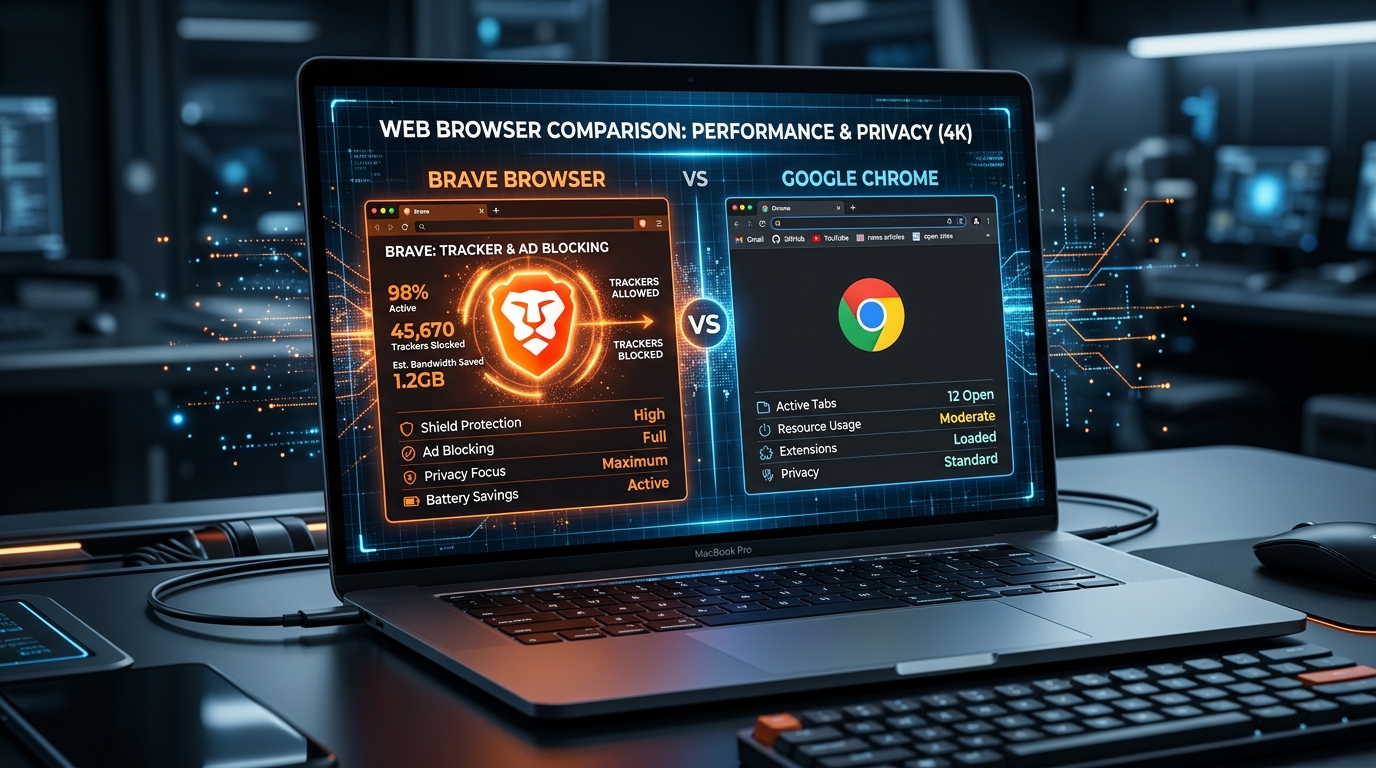
An exhaustive, technical head-to-head comparison between Brave and Google Chrome in 2026. We test tracking shields, canvas fingerprinting, memory isolation, process sandboxing, and physical tab security on shared machines.
Tutorial
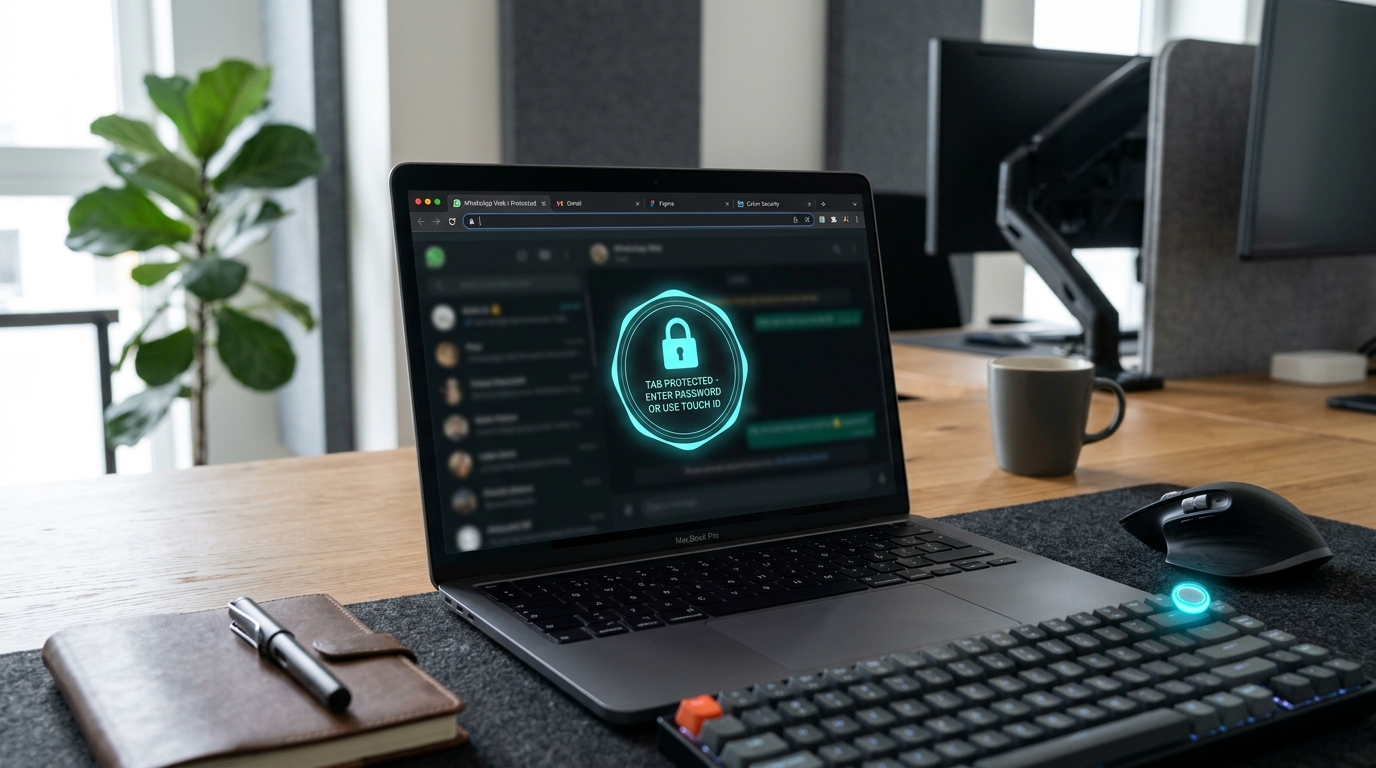
A comprehensive, technical guide on locking and password-protecting your WhatsApp Web tab in Chrome, Edge, and Brave. Learn why built-in screen locks fail, how navigation-level encryption works, and how to enable Touch ID and Windows Hello unlock.