
How to Password Protect Browser Tabs on Mac with Touch ID (2026 Step-by-Step Guide)
Learn how to lock and password protect individual browser tabs on macOS using Touch ID, Apple Silicon Secure Enclave, and WebAuthn biometrics. Complete setup for Google Chrome, Brave, and Edge on MacBook and Mac desktop.
TL;DR
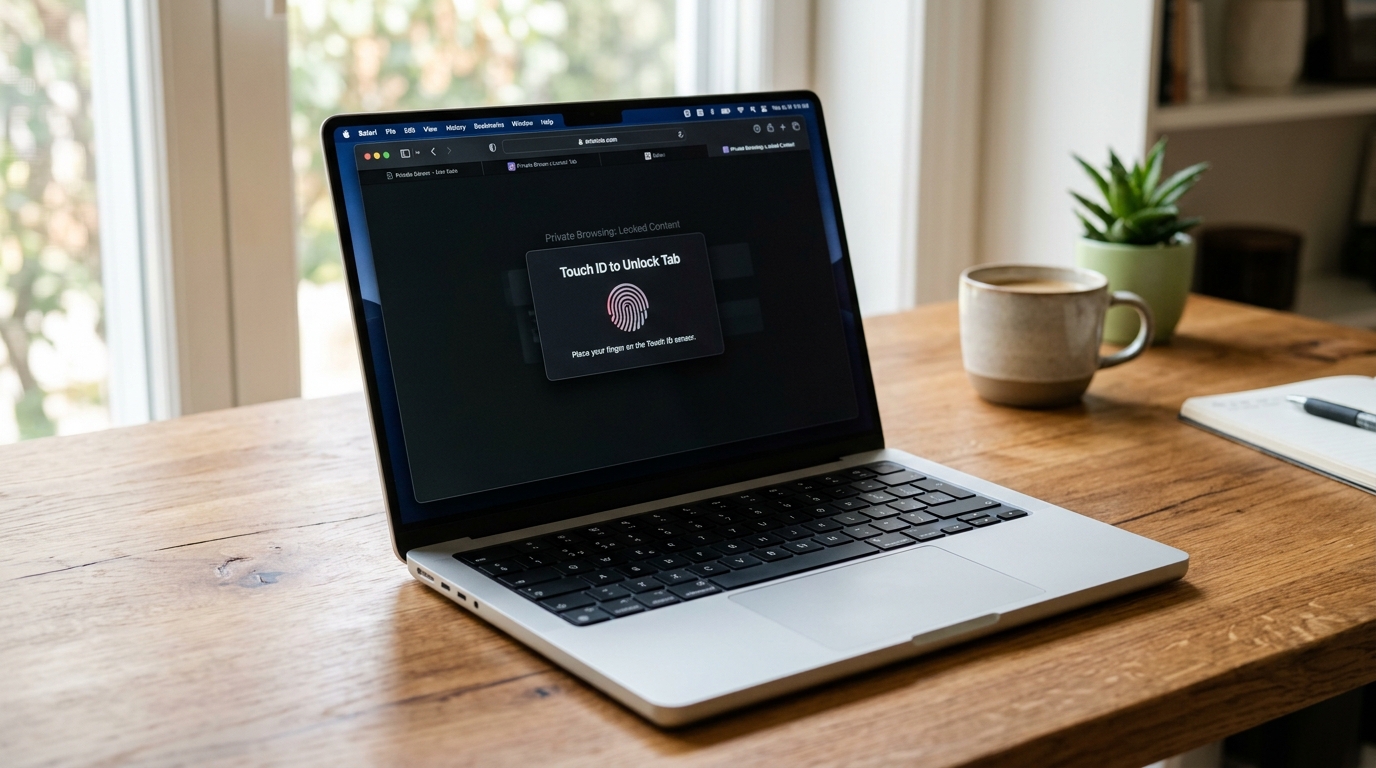
macOS does not natively allow you to lock individual browser tabs with Touch ID. By using Locksy with the WebAuthn standard, you can link tab decryption directly to your MacBook Touch ID sensor or Apple Magic Keyboard. This removes the locked webpage from the DOM and securely unlocks it with your fingerprint in under 0.3 seconds.
MacTouch IDBrowser SecurityApple SiliconWebAuthnChromeBraveBiometricsTutorial
Share:
Key Takeaways
- macOS includes powerful system-level security (FileVault, Gatekeeper, and Secure Enclave), but once your Mac is logged in, every open browser tab is completely exposed to anyone sitting at your desk.
- Neither Google Chrome, Apple Safari, nor Brave offers built-in tab biometric locking or per-tab password protection on macOS.
- WebAuthn (Web Authentication API) allows browser extensions to query macOS LocalAuthentication securely without ever transmitting or storing raw fingerprint data.
- Locksy integrates with Apple Secure Enclave via WebAuthn, converting your Touch ID sensor into an instantaneous physical key for sensitive web applications.
- When a tab locks on your Mac, Locksy unmounts the page DOM and revokes local access tokens, defeating browser Developer Tools element inspection.
- Touch ID tab locking functions seamlessly across M1, M2, M3, and M4 Apple Silicon Macs as well as Intel MacBooks and standalone Macs using the Apple Magic Keyboard with Touch ID.
- A fallback PBKDF2 master password (600,000 SHA-256 iterations) guarantees you never lose access if you work in clamshell mode with external third-party mechanical keyboards.
- Setting up Touch ID tab locking takes under 90 seconds and requires zero terminal command-line configuration or administrative root permissions.
Modern MacBooks running Apple Silicon (M1 through M4 chips) are among the most physically secure consumer computers in existence. With FileVault disk encryption, hardware-isolated Secure Enclaves, and instantaneous Touch ID biometric login, unauthorized access to a locked Mac requires nation-state cryptanalysis.
Yet the moment you sit down, place your finger on the sensor, and unlock your MacBook, all of that military-grade security vanishes from your browser.
If you step away to grab coffee in a shared office, take a bathroom break in a library, or share your screen on a conference call, your open browser tabs remain completely exposed. Your work email, sensitive client spreadsheets, personal WhatsApp Web chats, and crypto portfolios sit in plain view.
In this technical guide, you will learn how to bridge macOS hardware biometrics with your browser runtime, enabling instant Touch ID password protection on individual tabs in Google Chrome, Brave, and Microsoft Edge.
The Mac Security Paradox: Fort Knox at the Gate, Open Doors in the Browser
macOS is engineered around concentric rings of security. Apple isolates kernel operations through System Integrity Protection (SIP), sandbox-restricts third-party Mac App Store binaries, and protects cryptographic keys inside the Secure Enclave coprocessor.
However, modern knowledge workers do not spend their workday inside sandboxed desktop applications. Over 85% of everyday knowledge work occurs directly inside a web browser:
- Enterprise Messaging: Slack Web, Discord, WhatsApp Web, and Telegram Web contain proprietary intellectual property and personal conversations.
- Financial Operations: Stripe dashboards, online banking portals, and crypto Web3 wallets hold company capital and liquid assets.
- Internal Tools & Analytics: Jira boards, Salesforce records, and Google Docs contain unredacted confidential records.
When you walk away from your desk for ninety seconds, macOS will not lock your display unless you have configured an aggressive screen timeout. Even if you do, screen savers take time to kick in. Colleagues, visiting clients, or curious roommates walking past your desk can effortlessly read what is on your screen—a physical attack vector known in cybersecurity as shoulder-surfing.

Why macOS and Safari Private Browsing Aren't Enough
With macOS Sonoma and Sequoia, Apple introduced Touch ID locking for Safari Private Browsing. While this was a welcome privacy improvement, it has severe limitations for real-world workflows:
- All-or-Nothing Window Locking: Safari locks the entire Private Browsing window. It cannot lock a single critical tab inside your primary window.
- No Session Persistence: In Private Browsing, closing a tab purges all cookies and local session state. You cannot keep your persistent work dashboard or messaging tools logged in.
- Zero Support for Chromium: More than 70% of Mac power users rely on Google Chrome, Brave, Arc, or Microsoft Edge for extensions, web development, and enterprise SaaS compatibility. None of these browsers feature native Touch ID tab locks.
To lock specific tabs in your primary browser while preserving your logins and pinned tabs, you need a software layer that interfaces directly with macOS biometrics.
How WebAuthn Brings Touch ID to the Browser Runtime
To understand how tab locking works on a Mac without compromising your biometric security, we must examine the W3C WebAuthn (Web Authentication) standard.
In legacy software, adding fingerprint locking required installing invasive kernel extensions or background daemons with root privileges. Today, modern Chromium browsers communicate with macOS via the native platform authenticator:
┌─────────────────────────────────────────────────────────────┐
│                      macOS Environment                      │
│                                                             │
│   ┌──────────────────┐               ┌──────────────────┐   │
│   │  User Fingerprint│               │  Apple Silicon   │   │
│   │    on Touch ID   │──────────────>│  Secure Enclave  │   │
│   └──────────────────┘               └─────────┬────────┘   │
│                                                │            │
│                                     Hardware Cryptographic  │
│                                        Assertion (Local)    │
│                                                │            │
│   ┌────────────────────────────────────────────▼────────┐   │
│   │       macOS LocalAuthentication Framework           │   │
│   └────────────────────────────┬────────────────────────┘   │
│                                │                            │
│   ┌────────────────────────────▼────────────────────────┐   │
│   │          Chromium WebAuthn API (navigator)          │   │
│   └────────────────────────────┬────────────────────────┘   │
│                                │                            │
│   ┌────────────────────────────▼────────────────────────┐   │
│   │      Locksy Client-Side Extension Runtime           │   │
│   │  - Unmounts Page DOM when Locked                    │   │
│   │  - Derives Decryption Key via PBKDF2                │   │
│   │  - Restores Page State upon Touch ID Match          │   │
│   └─────────────────────────────────────────────────────┘   │
└─────────────────────────────────────────────────────────────┘
The Biometric Verification Flow
- Hardware Isolation: Your fingerprint signature is stored exclusively within the physical hardware of the Apple Secure Enclave. Neither the macOS operating system, nor the browser, nor any extension can read the raw biometric bitmap.
- Platform Credential Creation: When you configure biometric tab locking, Locksy issues a WebAuthn challenge to
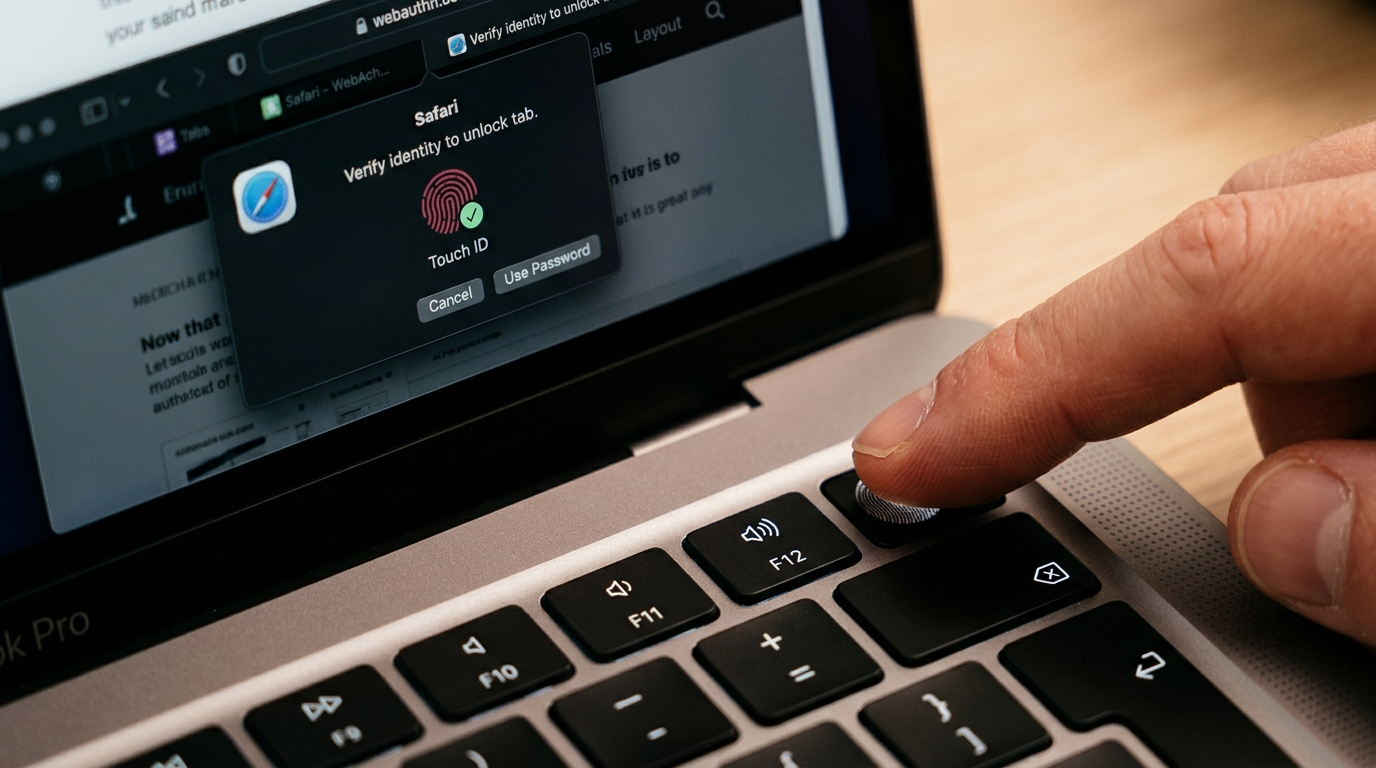
navigator.credentials.create(). - Hardware-Signed Challenge: macOS prompts you with the familiar system Touch ID sheet. Touching the sensor signs a cryptographic nonce using a private key locked inside the Secure Enclave.
- Instant Unlock: Upon receiving the verified assertion, Locksy decrypts the session memory and restores the tab DOM in under 0.3 seconds.
If biometric verification fails or if your MacBook is docked in clamshell mode without a Touch ID keyboard, the extension immediately falls back to a high-entropy master password derived through PBKDF2 with 600,000 SHA-256 iterations.
Step-by-Step Setup: Locking Tabs with Touch ID on macOS
Configuring Touch ID tab security on your Mac takes less than two minutes. Follow these exact steps:
Step 1: Install Locksy on Your Preferred Mac Browser
Because Locksy is built on standard Chromium APIs, you can install it on Google Chrome, Brave, Microsoft Edge, Arc, or Opera:
- Open your browser and navigate to the official Chrome Web Store Locksy Page.
- Click Add to Chrome (or Add to Brave / Edge).
- Click the puzzle icon in your browser toolbar and pin Locksy for instant access.
(Alternatively, visit Install Locksy for automated browser detection.)
Step 2: Establish Your PBKDF2 Master Password
Before enabling Touch ID biometrics, you must create a master password. This password serves as an immutable cryptographic backup:
- Click the Locksy shield icon in your toolbar.
- Enter a strong, high-entropy master password. You can test the resilience of your passphrase using our free Password Strength Checker.
- Confirm the password. Locksy initializes your client-side encryption vault locally. No account creation, email address, or cloud syncing is required.
Step 3: Enable Touch ID / WebAuthn Biometrics
Once your vault is initialized:
- Click the Settings (Gear Icon) in the Locksy popup.
- Toggle Enable Biometric Unlock (Touch ID / Windows Hello) to the ON position.
- macOS will immediately trigger a system dialog: "Do you want to allow this site to use Touch ID?"
- Rest your finger on the MacBook Touch ID sensor (or the top-right key of your Apple Magic Keyboard with Touch ID).
- The toggle turns green. Your hardware biometric profile is now linked.
Step 4: Lock Any Sensitive Browser Tab
You can now lock any open tab using three distinct methods:
- Keyboard Shortcut (Fastest): While viewing any sensitive tab, press Option + Shift + 9 (or Alt + Shift + 9 on Windows/Linux). The tab locks instantly. If you prefer a different combination like
Option + L, you can easily customize it anytime by navigating tochrome://extensions/shortcuts(orbrave://extensions/shortcuts). - Context Menu: Right-click anywhere on the webpage and select Locksy > Lock This Tab.
- Toolbar Extension Popup: Click the Locksy icon and toggle Lock Current Tab.
Once locked, the webpage is completely stripped from the viewport and replaced with a clean, dark-mode unlock screen. To restore the tab, simply tap your Touch ID sensor.
Technical Deep-Dive: DOM Unmounting vs Weak CSS Overlays
Most cheap tab-hiding extensions on the Chrome Web Store suffer from a catastrophic security flaw: they merely inject a CSS stylesheet with display: none !important or overlay a black <div> on top of the page.
The Vulnerability of CSS Overlays
An attacker, curious coworker, or tech-savvy friend can easily bypass a CSS overlay in three seconds:
- Press Cmd + Option + I to open Chrome Developer Tools.
- Inspect the lock overlay element in the Elements panel.
- Press Delete to remove the node, or uncheck
display: none. - The entire protected website reappears instantly.
Furthermore, screen scrapers, browser extensions with broad permissions, and screen recording utilities can continue scraping text from the DOM tree while a CSS overlay is visible.
How Locksy Protects the DOM
Locksy utilizes complete DOM unmounting:
// Simplified conceptual comparison: CSS Overlay vs Locksy DOM Unmounting

// ❌ WEAK EXTENSION METHOD: Vulnerable to DevTools deletion
document.getElementById('confidential-tab').style.display = 'none';
const fakeOverlay = document.createElement('div');
fakeOverlay.innerText = "Please enter password";
document.body.appendChild(fakeOverlay); // Easily deleted in DevTools!

// ✅ LOCKSY ZERO-KNOWLEDGE UNMOUNTING METHOD
const sensitiveRoot = document.getElementById('root');
const encryptedPayload = await crypto.subtle.encrypt(
  { name: "AES-GCM", iv: cryptographicIV },
  derivedPBKDF2Key,
  new TextEncoder().encode(sensitiveRoot.innerHTML)
);
sensitiveRoot.replaceChildren(); // DOM completely purged from memory
sessionStorage.clear(); // Clear transient session tokens
renderHardenedLockShield(); // Only the sandbox lock shield exists
When Locksy locks a tab:
- The active DOM tree is sanitized and unmounted from memory.
- Any background audio or video playback (such as a private YouTube video or meeting recording) is paused.
- If an attacker opens Developer Tools, the elements panel displays only Locksy's standalone security shield.
- The underlying data cannot be inspected, screenshotted, or recovered without a verified biometric assertion or master password.
Advanced Feature: Stealth 404 Disguise Mode on Mac
In a high-pressure office environment, having a giant neon lock screen with the words "CONFIDENTIAL TAB LOCKED" can provoke unwanted suspicion. Coworkers or managers looking over your shoulder might ask: "What are you hiding on company time?"
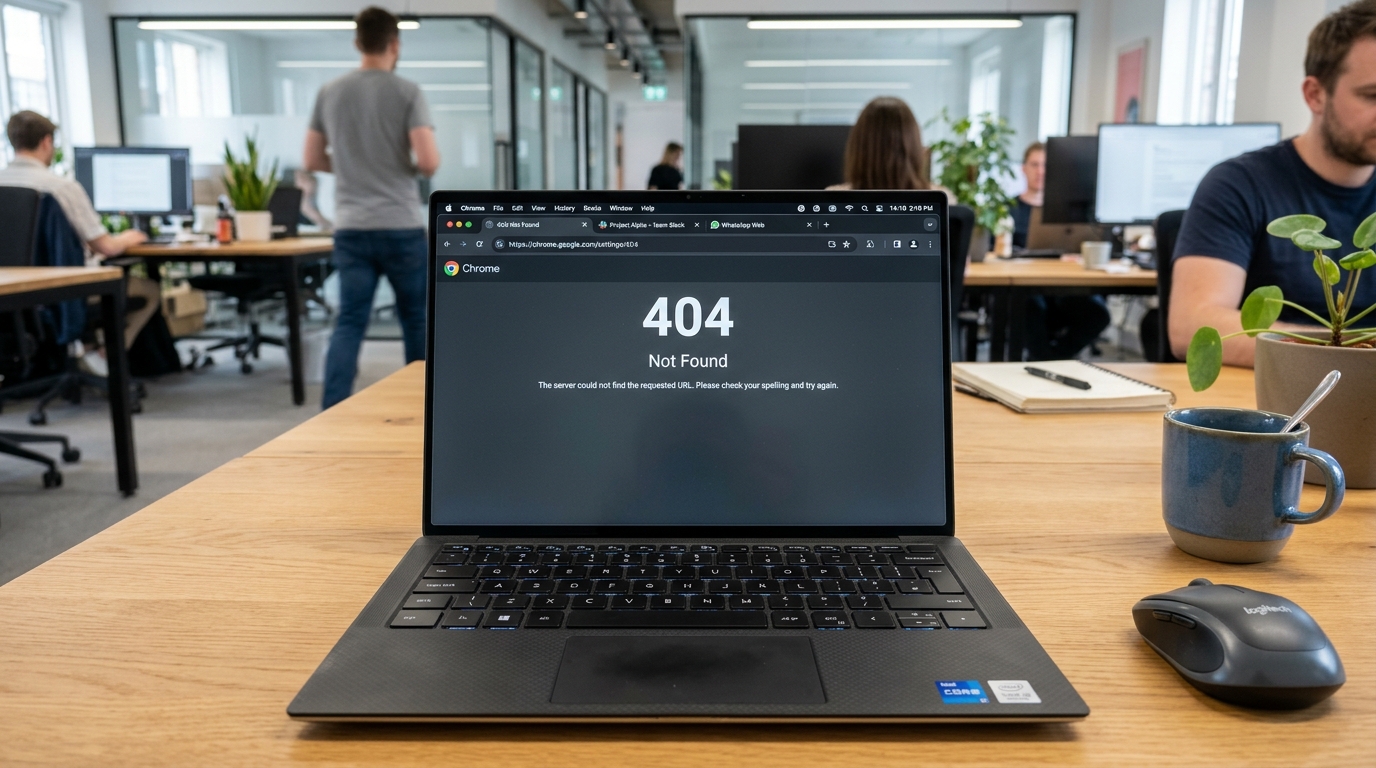
To solve this social engineering challenge, Locksy includes Stealth 404 Disguise Mode:
How Stealth 404 Works
When Disguise Mode is active:
- Instead of showing a lock prompt, the tab transforms into an authentic, pixel-perfect "404 Not Found - The requested URL was not found on this server" error page.
- The tab title changes to
404 Not Found, and the favicon changes to a generic gray globe. - Anyone looking at your MacBook screen assumes the link failed to load or the server is down.
- How to Unlock: Click three times in the upper-left corner of the 404 page (or press your configured hotkey) to reveal the Touch ID prompt, authenticate with your fingerprint, and restore your work.
Feature Comparison: Mac Tab Locking Solutions (2026)
| Feature | Safari Private Browsing (macOS) | Generic Chrome Extensions | Locksy (with Touch ID) |
|---|---|---|---|
| Browser Support | Safari Only | Chrome, Edge | Chrome, Brave, Edge, Arc, Opera |
| Individual Tab Locking | ❌ (Window only) | ⚠️ (Some) | ✅ Yes (Per-tab isolation) |
| Touch ID / WebAuthn Support | ✅ (Built-in) | ❌ (Passwords only) | ✅ Native Apple Silicon Touch ID |
| DOM Unmounting (DevTools Proof) | N/A | ❌ (CSS overlay only) | ✅ 100% Unmounted DOM |
| Stealth Disguise (Fake 404) | ❌ No | ❌ No | ✅ Built-in Disguise Mode |
| Encryption Standard | Apple Keychain | Plaintext / Weak Base64 | ✅ PBKDF2 600k SHA-256 / AES-GCM |
| Offline Zero-Knowledge | ✅ Yes | ❌ (Many collect analytics) | ✅ 100% Offline (Zero telemetry) |
| Idle Auto-Lock Timer | ❌ System sleep only | ⚠️ Unreliable | ✅ Custom configurable timer |
Optimizing Your Mac Privacy Workflow
To maintain seamless security without disrupting your productivity, apply these three workflow optimizations:
1. Configure the Idle Auto-Lock Timer
If you frequently step away from your desk without pressing Option + Shift + 9, configure an automatic lock timer:
- Open Locksy Settings.
- Set Auto-Lock Inactive Tabs to 3 minutes (or 5 minutes).
- Any sensitive tab left untouched in the background will automatically unmount and require Touch ID to view again.
2. Run a Browser Privacy Score Audit
Curious how vulnerable your current setup is to tracking, canvas fingerprinting, or WebRTC IP leaks? Use our free interactive Browser Privacy Score Tool to benchmark your workplace privacy posture and receive tailored recommendations.
3. Add Domain Rules for Automatic Tab Locking
If you always want specific web services locked (such as web.whatsapp.com, app.binance.com, or your internal company dashboard), configure domain rules in Locksy. Whenever you open these URLs, they automatically arm themselves with Touch ID protection upon launch. For a deep dive into WhatsApp Web specifically, read our companion guide on How to Password Protect WhatsApp Web in Chrome.
Troubleshooting Mac Touch ID Tab Protection
If you encounter issues configuring Touch ID on your Mac, consult these common solutions:
"Touch ID is not available on this device"
- Check Clamshell Mode: If your MacBook lid is closed and you are using a standard USB/Bluetooth keyboard, your Mac cannot access the physical Touch ID sensor. You must use your master password or connect an Apple Magic Keyboard with Touch ID.
- Verify System Preferences: Go to System Settings > Touch ID & Password on macOS and verify that at least one fingerprint is registered and that "Use Touch ID to unlock your Mac" is enabled.
Browser Prompts for Touch ID on Every Tab Switch
- By default, Locksy keeps a tab unlocked until you explicitly lock it, the idle timer expires, or the browser closes. If your tab locks immediately after switching windows, check whether your Auto-Lock on Tab Blur setting is toggled on. Turning it off keeps the tab unlocked while you are actively working across multiple windows.
Practical Conclusion
Hardware security on macOS is world-class, but it stops at the display glass. When your MacBook is awake and logged in, physical tab access control is your responsibility.
By pairing the Apple Silicon Secure Enclave and WebAuthn with Locksy, you gain sub-second fingerprint unlocking for your most sensitive web applications without sacrificing usability or trusting third-party cloud servers.
Secure your browsing session today: Install Locksy on Chrome Web Store or visit Install Locksy.
Frequently Asked Questions
Does Apple Safari or macOS have a built-in feature to lock tabs with Touch ID?
Is my biometric fingerprint data sent to any cloud server or extension developer?
What happens if I use my MacBook in clamshell mode connected to an external monitor?
Can someone bypass Touch ID tab locking using Mac keyboard shortcuts or DevTools?
Does Touch ID tab protection work on Brave, Edge, and Arc on macOS?
Will locking tabs with Touch ID slow down my Mac or consume extra battery?
VS
Vansh SethiAuthor
Developer & Founder of Locksy
Vansh is the developer and founder of Locksy — a privacy-first browser tab security extension trusted by 5,000+ users across Chrome, Edge, Firefox, and Brave. He writes about browser security, privacy, and developer tools.
Related Articles

Tutorial
How to Lock Specific Tabs in Chrome Without Extensions. Learn about lock chrome tabs and chrome tab security with practical tips and expert advice.

Technical
Tired of passwords? Discover how WebAuthn, FIDO2, and biometric browser security are finally ditching login woes. See how extensions like Locksy offer fingerp
Comparison
An exhaustive, technical head-to-head comparison between Brave and Google Chrome in 2026. We test tracking shields, canvas fingerprinting, memory isolation, process sandboxing, and physical tab security on shared machines.